Microsoft Outlook is a widely used email client for managing emails, contacts, calendars, and tasks. All this data is stored in a PST (Personal Storage Table) file. However, PST files are prone to corruption due to various technical and environmental factors. When a PST file becomes corrupted, users may face errors, Outlook crashes, missing emails, or complete inaccessibility of mailbox data.
Fortunately, repairing corrupt PST files is possible if the right method is used. This blog explains easy and effective ways to repair PST files, from built-in options to professional solutions.
Common Reasons Behind PST File Corruption
Before repairing a PST file, it’s helpful to understand why corruption occurs. Some common causes include:
- Sudden system shutdown or power failure
- Oversized PST files exceeding recommended limits
- Malware or virus infections
- Faulty add-ins or Outlook crashes
- Bad sectors on storage devices
- Improper Outlook termination
These issues can damage the internal structure of PST files, leading to errors.
Signs of a Corrupt PST File
You may be dealing with PST corruption if you notice:
- Outlook fails to open or crashes frequently
- Error messages like “The file xxxx.pst cannot be accessed”
- Missing or inaccessible emails and folders
- Outlook freezing during startup
- Synchronization or send/receive errors
When these symptoms appear, immediate action is recommended.
Method 1: Repair PST Using Outlook Inbox Repair Tool (ScanPST.exe)
Microsoft provides a free utility called Inbox Repair Tool (ScanPST.exe) to fix minor PST corruption.
Steps to Use ScanPST.exe
- Close Microsoft Outlook completely.
- Locate ScanPST.exe on your system (usually in the Outlook installation folder).
- Launch the tool and browse to select the corrupted PST file.
- Click Start to scan the file.
- If errors are found, click Repair and wait for the process to complete.
This tool works well for minor corruption, but it has limitations.
Limitations of ScanPST
- Cannot repair severely corrupted PST files
- Fails with very large PST files
- May lead to data loss in advanced corruption cases
Method 2: Create a New PST File and Import Data
If Outlook opens but behaves abnormally, creating a new PST file may help.
Steps
- Open Outlook and go to Account Settings → Data Files
- Create a new PST file
- Use Import/Export Wizard to import data from the old PST
This method does not work if the PST file is badly corrupted and Outlook cannot read it.
Method 3: Repair PST Files Using a Professional Tool (Recommended)
For severely corrupted, inaccessible, or oversized PST files, using a professional PST repair tool is the easiest and most reliable solution.
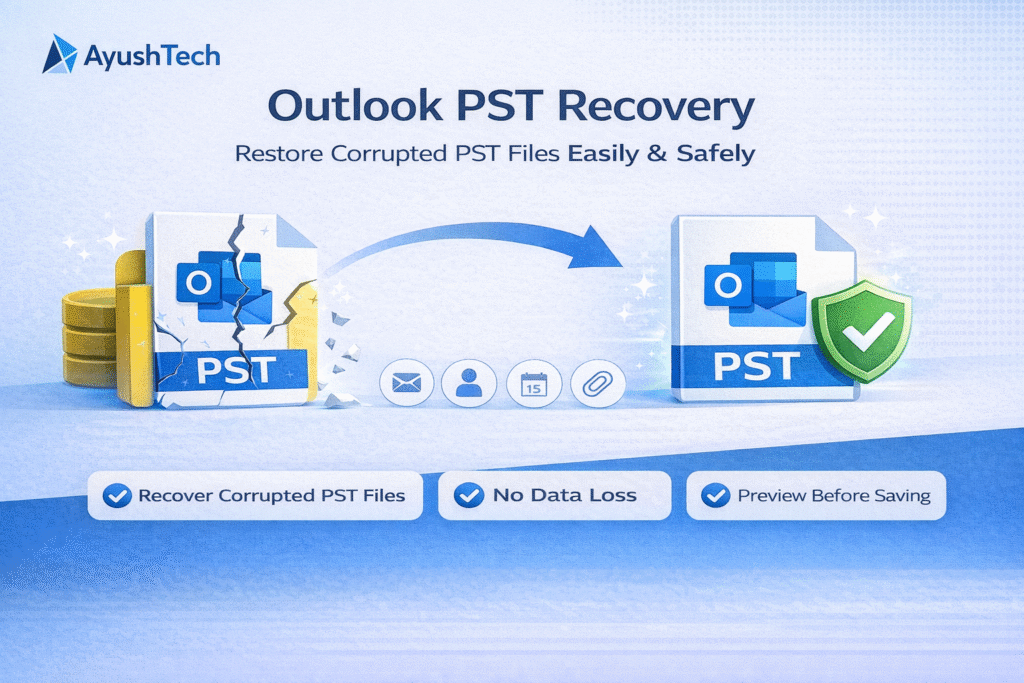
ATS PST Recovery uses advanced scanning algorithms to deeply analyze corrupted PST files and rebuild their internal structure without altering the original data. It safely recovers emails, attachments, contacts, calendars, tasks, notes, and folder hierarchy, ensuring complete data integrity. The tool supports large PST files and is compatible with all Microsoft Outlook versions, including the latest releases.
Advantages of Professional PST Repair Tools
- Repairs severely corrupted PST files
- Recovers emails, attachments, contacts, calendars, and tasks
- Preserves original folder hierarchy and metadata
- Supports large PST files without size limitation
- Compatible with all Outlook versions
- Offers preview option before saving data
Professional tools use advanced algorithms to rebuild PST file structures safely, minimizing the risk of data loss.
Conclusion
Repairing corrupt PST files doesn’t have to be complicated. For minor issues, Outlook’s ScanPST.exe can help, but for serious corruption, a professional PST repair tool is the safest and most effective solution. Choosing the right method ensures complete recovery of your Outlook data with minimal effort and zero data loss.
If you regularly rely on Outlook for important communication, keeping reliable repair and backup solutions on hand is always a smart decision.
How to Choose the Right Fixtures for Bathroom Remodeling Services in Bar Harbor?
UTV Shipping Cost and Choosing Reliable Services with Ship A1 Auto Transport
Why Most Crypto Tokens Fail And How Entrepreneurs Can Get It Right?
Embedded Software Market Demand Across Consumer Electronics And Automotive Sectors
4K Set Top Box Market Growth Driven By Smart Connectivity And OTT Integration
