Printing large documents can quickly become messy and time-consuming especially when multiple copies are involved. This is where the collate option in printing becomes incredibly useful.
If you’ve ever printed several copies of a multi-page document and ended up manually sorting pages, you know how frustrating it can be. The collate printing option automatically organizes pages into complete sets, making the entire printing process faster and more efficient.
In this guide, you’ll learn what collated printing means, how it works, and why using the collate option can significantly improve printing efficiency for both home users and businesses.
What Does the Collate Option Mean in Printing?
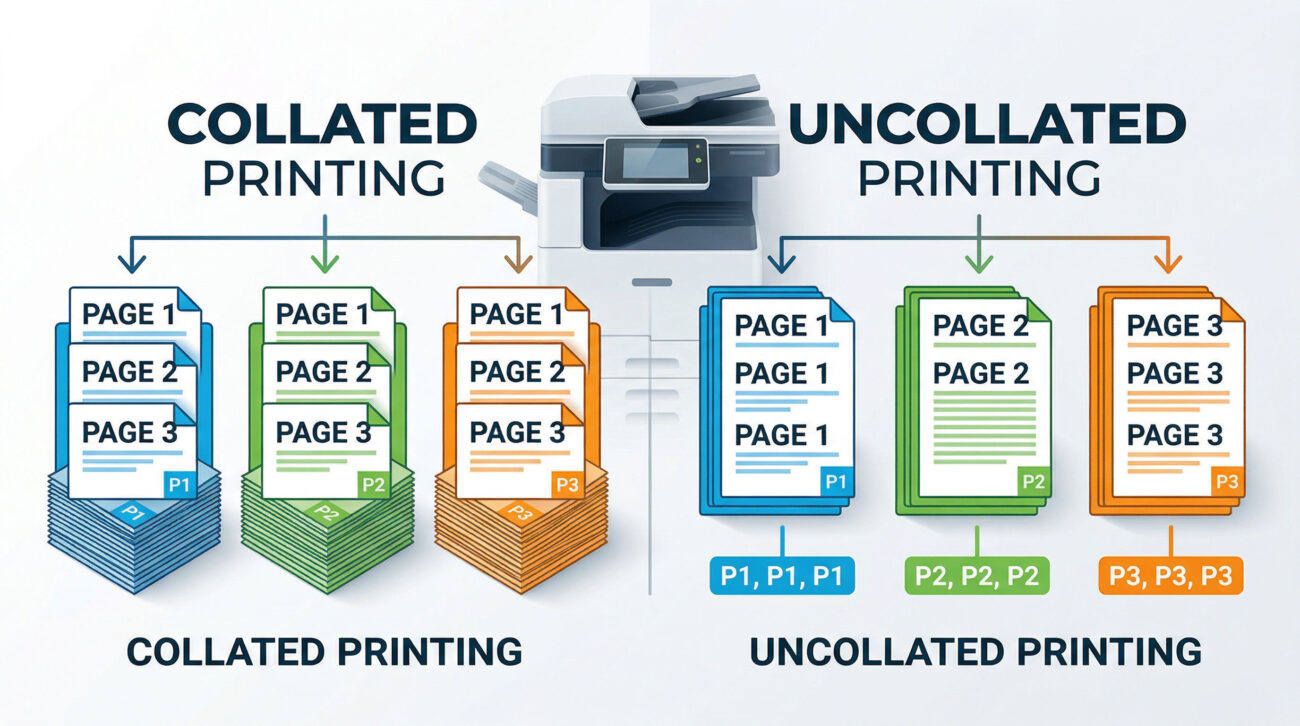
What does collate mean when printing. The collate option is a printer setting that organizes printed pages into complete, sequential sets when printing multiple copies of a document.
Example Without Collate
If you print 3 copies of a 5-page document without selecting collate, the printer outputs:
- Page 1
- Page 1
- Page 1
- Page 2
- Page 2
- Page 2
- Page 3
- Page 3
- Page 3
…and so on.
You must manually sort them into document sets.
Example With Collate Enabled
With the collate option enabled, the printer outputs:
- Pages 1–5 (Copy 1)
- Pages 1–5 (Copy 2)
- Pages 1–5 (Copy 3)
Each copy prints as a complete document set.
This simple setting can save significant time and effort, especially when printing reports, presentations, manuals, or assignments.
Key Benefits of Using the Collate Option
1. Saves Time When Printing Multiple Copies
Sorting pages manually takes time, particularly for large documents.
Using the collate feature allows printers to automatically arrange pages into proper order.
Example scenarios where collate saves time:
- Office reports
- School assignments
- Training manuals
- Meeting handouts
- Legal documents
Instead of sorting hundreds of pages manually, the printer does it for you.
2. Reduces Human Errors
Manual sorting often leads to mistakes like:
- Missing pages
- Duplicate pages
- Incorrect order
- Mixed document sets
The collate option eliminates these issues by organizing pages automatically.
This is especially important when printing:
- Contracts
- Business proposals
- Client presentations
- Academic documents
Accuracy improves when the system handles page organization.
3. Improves Office Productivity
In busy workplaces, printing tasks can slow down employees.
Collated printing helps teams:
- Save administrative time
- Reduce repetitive tasks
- Focus on higher-value work
For example, printing 50 collated training packets can be completed without additional manual sorting.
4. Ideal for Large Document Printing
The collate setting becomes essential when printing long documents.
Consider printing:
- 30-page reports
- 100-page manuals
- Multi-page presentations
Without collate, sorting pages becomes extremely tedious.
With collate enabled, the printer automatically produces ready-to-use document sets.
5. Perfect for Meetings and Presentations
Collated printing ensures every participant receives a complete, organized document.
This is helpful for:
- Board meetings
- Conferences
- Training sessions
- Classroom handouts
Each attendee gets the exact same document structure.
When Should You Use the Collate Option?
You should enable collated printing when:
- Printing multiple copies of multi-page documents
- Preparing meeting handouts
- Printing reports or proposals
- Creating training materials
- Printing booklets or study guides
However, you may not need collate when:
- Printing a single copy
- Printing single-page documents
- Printing pages separately for binding or processing
How to Use the Collate Option (Step-by-Step)
Most printers support the collate feature, and enabling it is simple.
Step 1: Open the Print Menu
Press Ctrl + P (Windows) or Command + P (Mac).
Step 2: Select Number of Copies
Choose how many copies you want to print.
Step 3: Enable the Collate Option
Look for the “Collate” checkbox in the print settings.
Step 4: Start Printing
Click Print, and the printer will automatically organize pages into complete sets.
Collate vs Uncollated Printing: Quick Comparison
| Feature | Collated Printing | Uncollated Printing |
|---|---|---|
| Page order | Complete sets | Same pages grouped |
| Manual sorting | Not needed | Required |
| Efficiency | High | Low |
| Best for | Multi-page documents | Bulk page printing |
For most professional printing tasks, collated printing is the better choice.
Common Printing Situations Where Collate Helps
The collate option is widely used in many environments:
Offices
- Reports
- Project documents
- Client proposals
Schools & Universities
- Student assignments
- Study materials
- Exam papers
Businesses
- Product manuals
- Employee training guides
- Marketing packets
Frequently Asked Questions (FAQs)
What does collate mean when printing?
The collate meaning printer multiple copies of a document in complete sets rather than grouping identical pages together.
Should I print collated or uncollated?
Choose collated printing when printing multiple copies of multi-page documents. It ensures pages are automatically organized into proper order.
Does collate slow down printing?
Not significantly. Most modern printers process collated documents quickly without noticeable delays.
Why is my printer not collating properly?
Common reasons include:
- Printer driver issues
- Incorrect print settings
- Application overriding printer settings
Updating the printer driver or checking the print dialog usually resolves this.
Do all printers support collated printing?
Yes. Most modern home and office printers support the collate option through printer software or operating system print settings.
Final Thoughts: Make Printing Faster and Smarter
The collate meaning organized office reports, school assignments, or meeting handouts, collated printing saves time, prevents errors, and documents.
Instead of sorting pages manually, let your printer handle the job automatically.
Next time you print multiple copies, enable the collate option and streamline your workflow.
